You’ve completed your NYSC online registration, your payment has gone through, and then you see an option to Print Slip
But what exactly is it?
This guide breaks down everything you need to know about the NYSC Green Card, including how to check and print it, when it becomes available, common problems you may encounter, and how to handle errors.
What Exactly Is the NYSC Green Card?
The NYSC Green Card is the registration printout generated after you successfully complete your online registration on the NYSC portal.
It serves as evidence that your NYSC registration has been completed and that your details have been captured in the NYSC system.
Despite the name, there is nothing particularly “green” about the document.
The Green Card is normally printed on plain white A4 paper. It is also not an identification card, passport, or your NYSC call-up letter.
Instead, think of it as your NYSC registration record containing important information you submitted during registration.
What Information Is on the NYSC Green Card?
Your Green Card contains several details connected to your NYSC registration.
Depending on your record, you should see information such as:
Full name
Date of birth
Call-up number
Institution and course of study
Contact address
Phone number
Next-of-kin information
Blood group
Genotype
Date of graduation as provided by your school
Kit sizes, including shoes, shirts and shorts
Passport photograph
Because the document contains important personal information, check it carefully after printing.
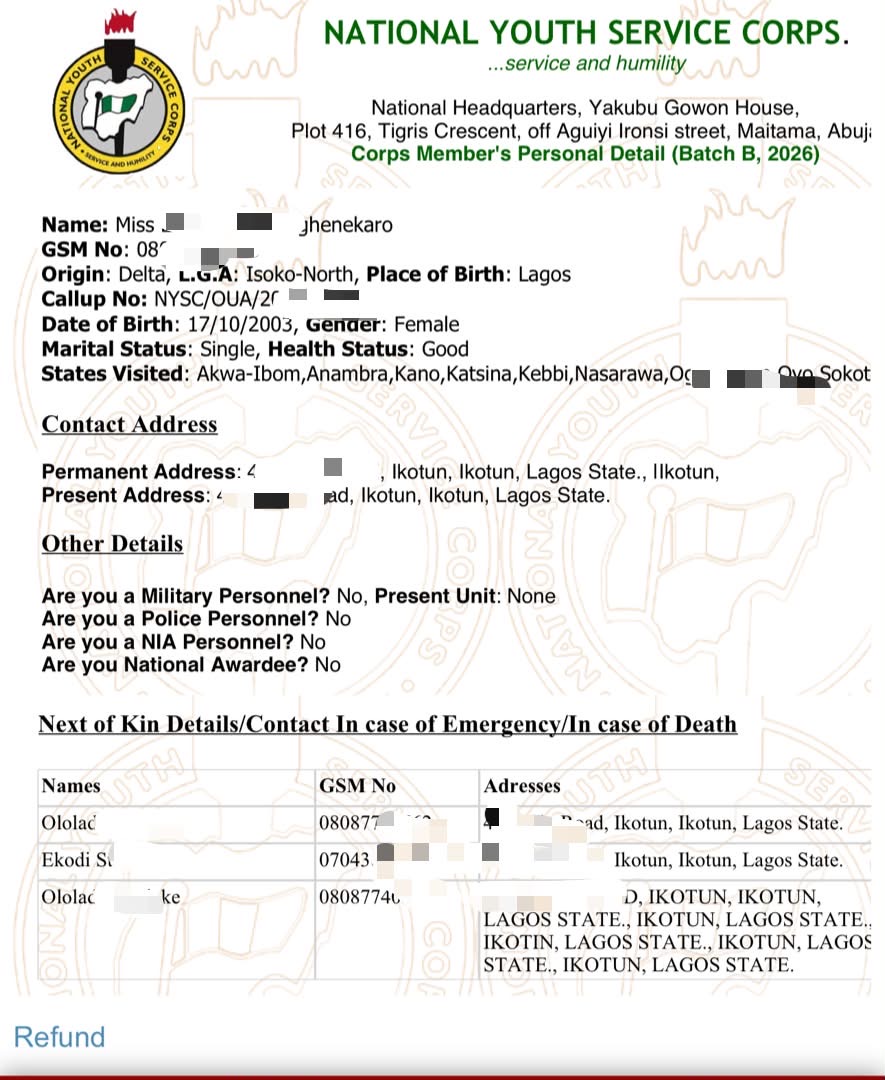
Sample of NYSC GREEN CARD
Why Is It Called a “Green Card”?
The name can be misleading, especially if you have never seen one before.
The NYSC Green Card is not an actual green-coloured card. It is simply the name used for the registration printout.
So, when other PCMs tell you to “print your Green Card,” they are referring to the registration slip available through your NYSC portal dashboard.
Do You Need the Green Card in NYSC Camp?
Yes.
The Green Card is one of the compulsory documents you should have with you when reporting to the NYSC orientation camp.
It provides evidence of your completed registration and is required during camp documentation.
For that reason, don’t leave home without sorting it out.
A good approach is to:
Print the original copy.
Make at least two photocopies.
Save a digital copy on your phone or email.
That way, you have a backup if something happens to the physical copy.
Get the latest NYSC updates, batch and stream information, camp updates and other important information. Join our NYSC WhatsApp Channel
How to Check and Print Your NYSC Green Card
Once your registration is complete and the Green Card has been made available on your dashboard, printing it is straightforward.
Step 1: Make Sure Your Registration Is Complete
Before looking for the Green Card, confirm that your NYSC registration has been successfully completed.
The original guide identifies these as important requirements:
Your school should have uploaded your name to the NYSC Senate List.
You should have completed your registration on the NYSC portal.
Your Remita payment should have been successfully approved.
Your call-up number should be available on your dashboard.
If these requirements have not been completed, the Green Card may not be available for printing.
Step 2: Log in to the NYSC Portal
Visit the NYSC portal and log in using the email address and password you used during registration.
Once you are on your dashboard, look just above your passport photograph for “Print Slip.”
Select it to access the Green Card interface.
Step 3: Open Your Green Card
Click “Open” to view the document.
The Green Card should open in a new tab, where you can review the information displayed on it.
Take a moment to check your details before printing.
Step 4: Save a Digital Copy
Once you have confirmed that everything is correct, save the document as a PDF on your phone, computer or other device.
It is also a good idea to keep a backup in your email so you can access it if your device is lost or damaged.
Step 5: Print the Document
Print the Green Card on A4 paper using a coloured printer.
Afterwards, make at least two black-and-white photocopies for your records.
The coloured original can be kept for presentation at camp, while the photocopies can be stored with your other NYSC documents.
Get your compulsory NYSC Medical Fitness Certificate and Report without unnecessary stress.
Your Green Card Is Not Loading? Try These Fixes
Sometimes, the problem isn’t your registration. The NYSC portal itself can be slow or fail to load properly.
If your Green Card isn’t opening, try these steps:
Confirm that your payment was successful.
Check that your call-up number is available.
Log out of the NYSC portal and log in again after some time.
Clear your browser cache and reload the page.
Try using a laptop or desktop computer if you were using a phone.
Try another browser. Chrome may work more smoothly for some NYSC portal processes.
If the portal is experiencing heavy traffic, wait and try again later.
If you’ve tried these options and the problem continues, you can contact NYSC support through its official helplines.
When Does the NYSC Green Card Become Available?
Your Green Card may not appear immediately after you complete registration.
In many cases, it becomes available a few hours after your payment has been confirmed. For some PCMs, however, it can take a couple of days. In rare situations, the delay may extend to weeks depending on the NYSC deployment schedule.
Some common reasons for a delay include:
NYSC Registration Payment Has Not Been Confirmed
Heavy Traffic on the NYSC Portal
Your Call-Up Number Is Not Yet Available
Found an Error on Your NYSC Green Card? Don’t Ignore It
Seeing incorrect information on your Green Card can be worrying, but not every error requires the same response.
Some details are more important than others, so you need to know what should be corrected and what may not require immediate action.
Kit Size Errors
If your shirt, shoe or other kit size is incorrect, it can generally be handled when you receive your camp kit.
This does not necessarily require a formal correction on the NYSC portal.
School Start and End Years
You may also notice start year and end year information under your educational details.
According to the information in this guide, an inaccurate start or end year does not affect your service and can be left as it is.
Date of Graduation
Your date of graduation is more important.
It should correspond with the date on your statement of result.
If there is a difference, contact your Student’s Affairs Officer so the issue can be addressed.
Name or Course of Study
Your name and course of study are also details you should take seriously.
The NYSC dashboard provides correction options for certain details, allowing you to make corrections before they become a problem during the mobilization or camp process.
Date of Birth
Date of birth is another important detail on your NYSC record.
NYSC provides an option to correct the date of birth using a WAEC verification PIN, which can be accessed from your dashboard.
However, this correction method does not always work.
The system uses the date of birth on your JAMB profile by default. According to the information provided in this guide, leaving the date of birth uncorrected does not affect your service.
Still, if you notice an important discrepancy, it is better to address it early rather than wait until you get to camp.
Quick Troubleshooting Guide for Green Card Problems
If your Green Card isn’t appearing after payment, go through this checklist:
Payment successful? Confirm your payment status.
Call-up number available? Check your NYSC dashboard.
Logged out and back in? Try again after some time.
Browser issue? Clear your cache and reload.
Using a phone? Try a laptop or desktop.
Browser problem? Try another browser, such as Chrome.
Portal busy? Wait and try again later.
These simple checks can resolve many Green Card access problems without needing outside assistance.